La Élume Beauté · Chapter 1 of 7
Pages the CMS can't break
 Jovanus Hartono2026
On this page
The store's homepage is built from content the brand edits in its Content management system: an admin where the brand changes text and images without touching code.: hero banners at the top, four editorial sections in the middle, and a few richer components below them. Changing a headline or swapping a banner is a save in the CMS, with no deploy.
The brand can also switch a section off, or leave one half finished while they work on it. The homepage has to cope with both: show what's ready and quietly leave out the rest. Most of this chapter is about how it does that.
Three kinds of section
The homepage asks the CMS for three kinds of content, each from its own endpoint.
At the top are the hero banners, an autoplaying carousel that fades between slides. Each banner has an image, a title, a short description, a button and, optionally, its own colours for the text and the button. If there are no banners at all, one built-in slide shows instead.
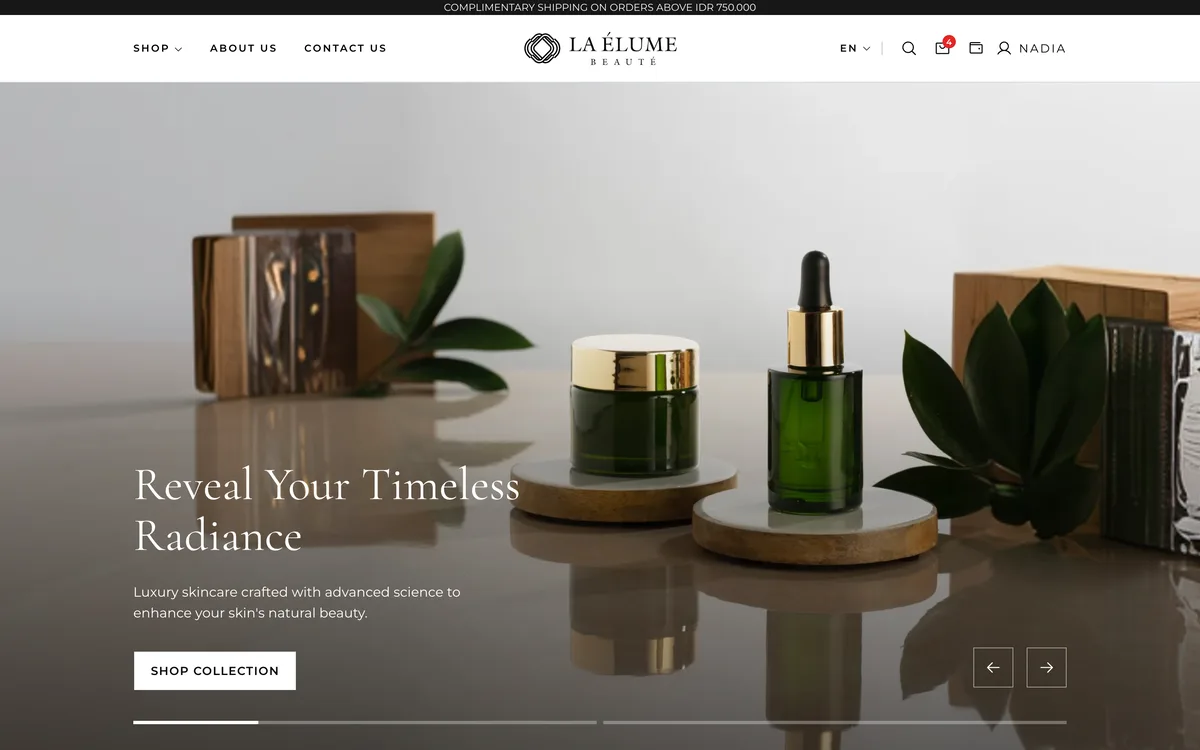
Below that are four editorial sections. Think of them as four numbered slots on the page. Each slot has a fixed name and a fixed layout: the first is a featured collection, the second an image beside some text, the third the same with the image on the other side, and the fourth a wide promo banner. The brand fills a slot by creating a CMS entry with that slot's name.
One request fetches all four entries, and each slot picks out its own:
const layouts = {
  "section-1": FeaturedCollection,
  "section-2": ImageBesideText,
  "section-3": TextBesideImage,
  "section-4": PromoBanner,
};

const Section = ({ name }: { name: keyof typeof layouts }) => {
  const { data, isPending } = useSections(); // one request, shared by all four

  if (isPending) {
    return <SectionSkeleton />;
  }

  const entry = data.find((section) => section.name === name);
  if (!entry) {
    if (import.meta.env.DEV) {
      console.warn(`No CMS entry for "${name}"`);
    }
    return null;
  }

  const Layout = layouts[name];
  return <Layout content={entry} />;
};
While the request is on its way, each slot shows a A grey placeholder box drawn where content will appear, so the page keeps its shape while it loads., so the page doesn't jump when the content arrives. If the brand hasn't filled a slot, it renders nothing at all. In development it also prints a warning to the console, so an empty slot is easy to spot.
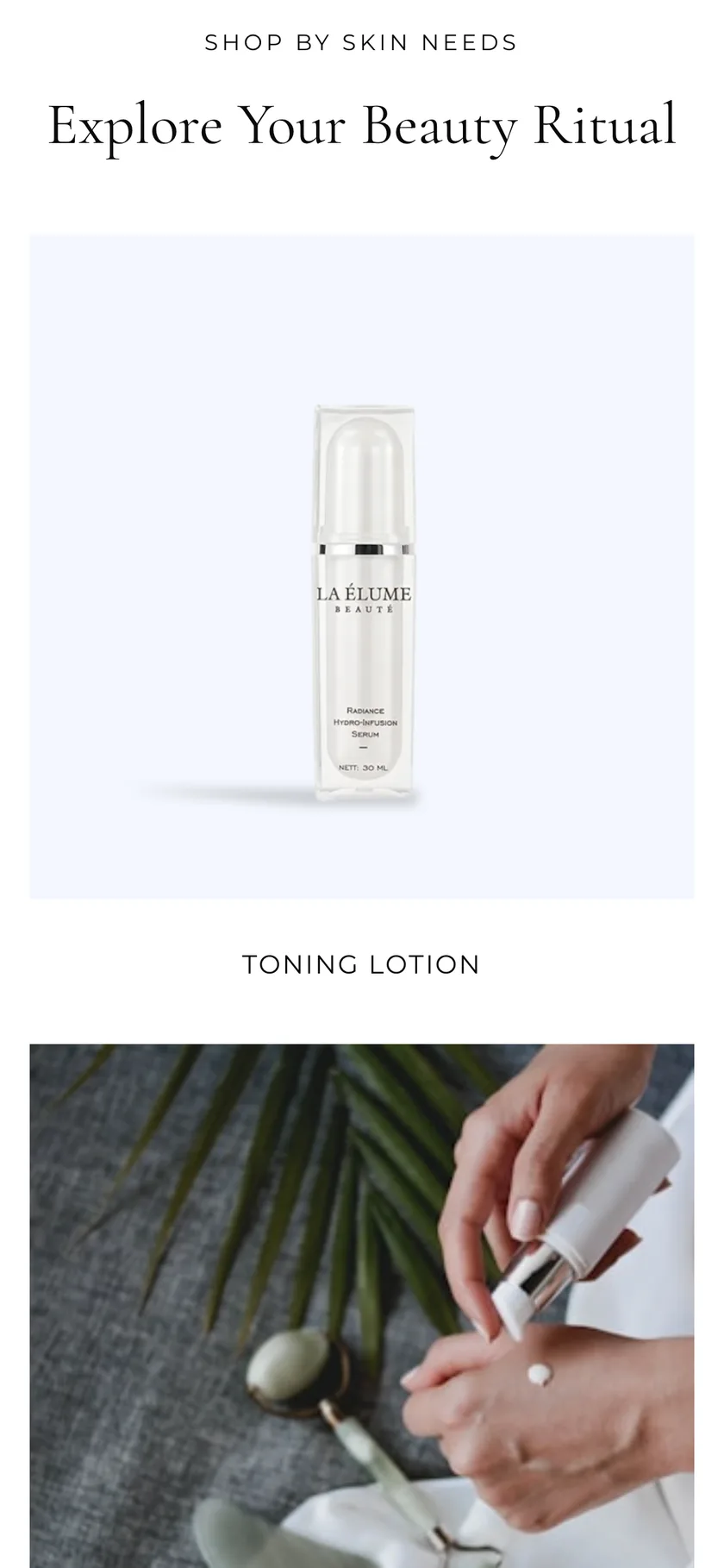
The last kind is four richer homepage components: a grid of cards for different skin needs, a story block, a quote and a grid of benefits. Their content is a free-form object, one per language, and it needed the most care.
Checking what the CMS sends
The store's code for calling the backend is generated from the backend's OpenAPI spec: a file that describes every endpoint of an API and the shape of what each one returns., and that includes TypeScript types for every response. (There's a whole chapter on living with that.) For these four components, the spec described their content as an array of numbers. What actually arrives is an object like this:
{
  "en": {
    "enabled": true,
    "title": "Shop by skin needs",
    "subtitle": "Explore your beauty ritual",
    "cards": [
      { "title": "Radiance serum", "image": "https://…/serum.jpg" },
      { "title": "Toning lotion" }
    ]
  },
  "id": { "…": "the same, in Indonesian" }
}
So the generated type was no help at all. The store treats that content as unknown, a TypeScript type that makes you check a value before you can use it, and checks its real shape with Zod. A Zod schema describes the shape you expect, and safeParse tells you whether a value matches without throwing:
const card = z.object({
  title: z.string().optional(),
  image: z.string().optional(),
});

const skinNeeds = z.record(
  z.string(), // one entry per language
  z.object({
    enabled: z.boolean().optional(),
    title: z.string().optional(),
    subtitle: z.string().optional(),
    cards: z.array(card).optional(),
  })
);

const result = skinNeeds.safeParse(component.content);
if (!result.success) {
  return undefined; // wrong shape: leave the section out
}
Every field is optional in the schema, so a half-finished entry still parses. The rules for what gets shown come after that:
- A section needs its switch turned on, and the English entry's switch counts for every language, so switching a section off in English switches it off everywhere.
- A section also needs all of its required fields.
- A card with no image or no title is dropped.
- A grid left with no cards is hidden.
Anything that doesn't pass isn't shown. That's how the brand can switch a section off, or leave one half done, and the page leaves that section out instead of breaking.
Sanitising the HTML
Some of what the CMS sends is rich text, as HTML, and React only renders an HTML string if you use dangerouslySetInnerHTML. The name is a warning. Whatever is in that string ends up in the page, and some HTML can run code, like an image with an onerror attribute that someone slipped into a product description. That's called Cross-site scripting: someone else's code running on your site, where it can read what your visitors see and type..
So every piece of HTML from the backend goes through DOMPurify first. It Cleans HTML by removing anything that can run code, while keeping the formatting. the string, keeping the formatting and throwing away anything that could run:
import DOMPurify from "dompurify";

DOMPurify.sanitize('<p>Gentle <b>daily</b> cleanser</p><img src=x onerror="alert(1)">');
// '<p>Gentle <b>daily</b> cleanser</p><img src="x">'

<div dangerouslySetInnerHTML={{ __html: DOMPurify.sanitize(product.description) }} />
That covers every place that renders HTML from the backend, including ones older than the CMS work, like the product description, the product summary and customer reviews. They all go through one component that sanitises the HTML and applies the typography styles.
Images at the right size
Product and banner images come from an image service that resizes and converts on the fly, based on the URL. Ask for serum.jpg?w=640&format=webp and you get a 640-pixel WebP.
Two small helpers build those URLs everywhere. The first sets the width and asks for WebP. It uses searchParams.set, which replaces a parameter, instead of append, which adds another copy. That matters when a URL that already has a width goes through the helper again:
append:  serum.jpg?w=400&format=webp&w=1200&format=webp
set:     serum.jpg?w=1200&format=webp
The second builds a srcset from a list of widths. Together with sizes, which says how wide the image will be on screen, that lets the browser download the smallest file that still looks sharp. MDN's guide to responsive images explains the pair well. The hero ends up like this:
<img
  src="banner.jpg?w=1600&format=webp"
  srcset="banner.jpg?w=768&format=webp 768w,
          banner.jpg?w=1200&format=webp 1200w,
          banner.jpg?w=1600&format=webp 1600w,
          banner.jpg?w=2000&format=webp 2000w"
  sizes="100vw"
/>
Each component gets its own list of widths and a matching sizes: the hero asks for 768 to 2000 pixels, a product card for 320 to 800. Images that ship with the store itself, like the built-in hero slide, aren't on the image service, so the helpers leave them alone and give them no srcset.
Data before the first paint
The hero and the homepage components are the first thing anyone sees, so the homepage loads their data before it renders at all. The store uses TanStack Router, where a route can have a loader that runs before its page component, and TanStack Query, which caches every response under a A cache key: the label a response is stored under. Two requests with the same key share one cached answer..
The trick is to use exactly the same query options in both places:
export const Route = createFileRoute("/")({
  loader: ({ context }) =>
    Promise.all([
      context.queryClient.ensureQueryData(heroBannersQuery),
      context.queryClient.ensureQueryData(homepageComponentsQuery),
    ]),
  component: HomePage,
});

// Inside the page, the same options mean the same query key,
// so the data is already in the cache on the first render.
const { data: banners } = useQuery(heroBannersQuery);
ensureQueryData fetches only if the cache doesn't have the data yet, and the loader waits for both. By the time the page renders, the hero and the homepage components find their answers already cached, so they're on screen from the The moment the browser first draws the page.. The router docs have a guide on exactly this pairing. The editorial sections and the product shelves still load afterwards, behind their skeletons.
Pages from the CMS
The store's legal pages, the privacy policy and the terms, are CMS pages too. They share a single route that takes the page's name from the URL, with a path param. If a page doesn't exist or isn't published, the route shows the store's not-found page. The title comes from the CMS, with a sensible default if it's missing, and an empty page says "This page is currently empty." instead of rendering a blank.