Harich Jewelry
 Jovanus Hartono2024
On this page
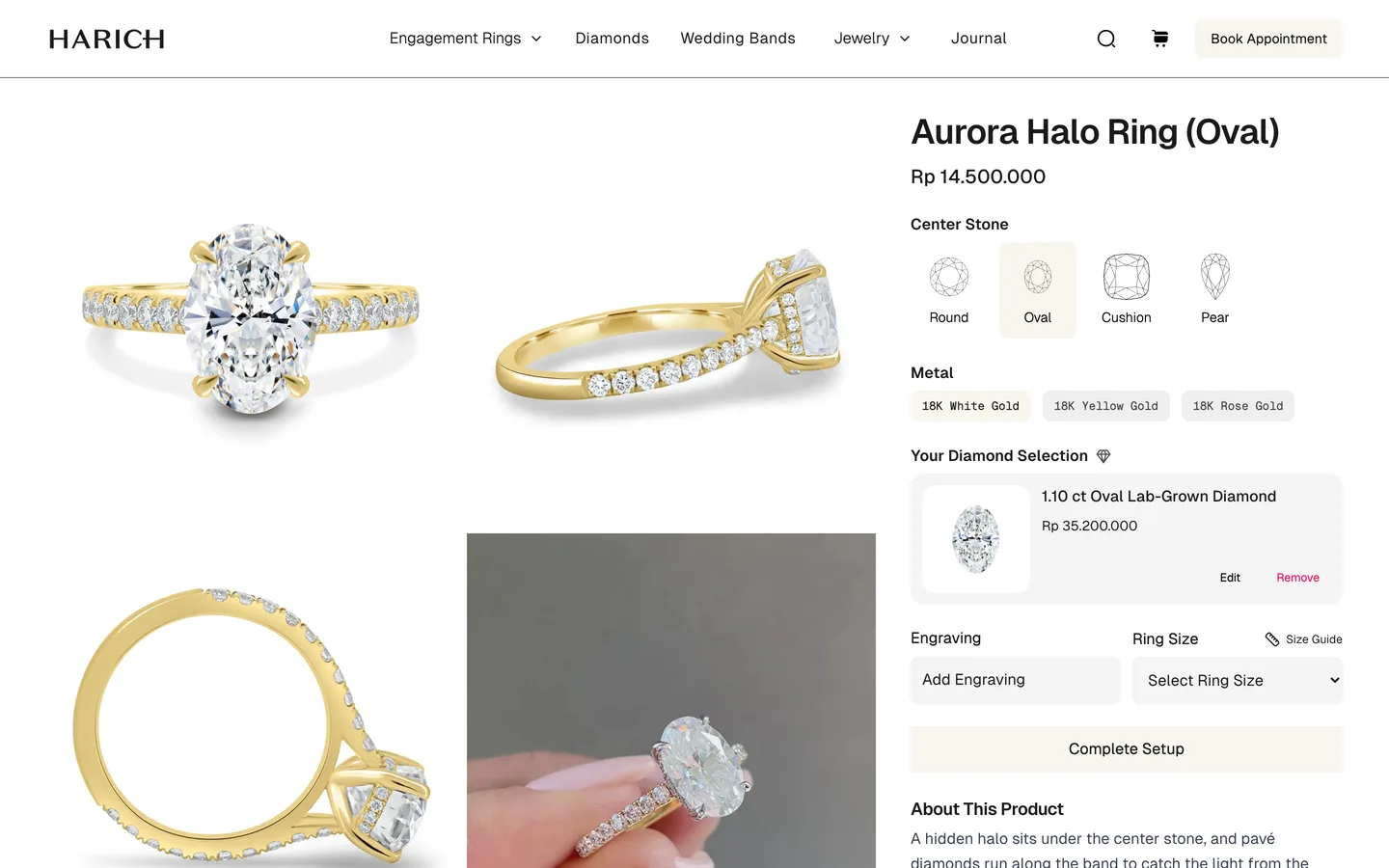
Harich Jewelry is a Jakarta jeweller that sells engagement rings and fine jewelry, set with certified lab-grown diamonds. The heart of its site is the engagement ring. You pick a setting, the metal ring that holds the stone, and then the diamond that goes in it: a round one, an oval, a pear. You add an engraving and a ring size, and both pieces go into one cart.
Everything on the site comes from Shopify. Products, diamonds, collections, menus, the home page carousel and the blog are all edited in the Shopify admin, and checkout is Shopify's. I built the storefront on top: a Next.js site that reads Shopify's Storefront API over GraphQL through Apollo Client, with NextUI (since renamed HeroUI) and Tailwind for the interface. I started it on Next.js 14 and moved it to 15.
Product and collection pages are cached, and a Shopify webhook clears them when something changes, the same way I describe on the Goosh page. The webhook handler and the cart handling follow Vercel's Next.js Commerce template.
One ring, four products
A ring design like the Aurora Halo comes in several shapes, because the setting is made to fit the stone. A setting for an oval diamond isn't the same piece of metal as one for a round diamond, with a different price and different photos.
So in Shopify, each shape is its own product: Aurora Halo Ring (Round), Aurora Halo Ring (Oval), and so on. What ties them together is two A custom field you add to a Shopify product, like a ring's shape or a diamond's carat weight. on each one:
ring.product_shape_referencelists the sibling products, the same ring in every shape.stone.shapepoints at a A custom content type in Shopify. Here, one entry per diamond shape, with a name and an icon. for the shape, which holds its label and an outline icon.
The product page asks for both in one query, including each sibling's shape, so it can draw a row of icons:
shape: metafield(namespace: "stone", key: "shape") {
  ...stoneShape
}
shapeReference: metafield(namespace: "ring", key: "product_shape_reference") {
  references(first: 100) {
    edges {
      node {
        ... on Product {
          ...compactProduct
          cut: metafield(namespace: "stone", key: "shape") {
            ...stoneShape
          }
        }
      }
    }
  }
}
That row is the Center Stone picker at the top of the page. Each icon is a link to its sibling's page, and the one you're on is highlighted. The same shape metaobject does a second job further down the page, when you choose the diamond.
Picking the diamond
Under the metal options, a setting's page says "Choose your diamond". Clicking it opens a picker with every diamond the store has that fits the ring.
The picker asks Shopify for the diamonds collection, filtered by the ring's own stone.shape value. That value is the id of the shape metaobject, and each diamond carries the same kind of metafield, so a round setting only ever shows round stones. It runs in the browser with Apollo's useLazyQuery, which waits until you open the picker:
const open = useCallback(
  (stoneShapeId?: string) => {
    const filters = stoneShapeId
      ? { productMetafield: { namespace: "stone", key: "shape", value: stoneShapeId } }
      : {};

    getProduct({ variables: { filters: [filters] } });
    onOpen();
  },
  [getProduct, onOpen],
);
A setting with no shape set gets an empty filter, and the picker shows every diamond.

Every card shows the stone's carat, clarity, color and cut, which come from four more metafields on the diamond. Pick one, and the picker closes and the ring's page shows your choice:
A choice that survives a reload
Someone might choose a stone, go and look at the other ring designs, and come back tomorrow. If the choice only lived in the page, every reload would send them back to the picker.
So the chosen diamond lives in the browser's localStorage, under harich.selected_stone, through the useLocalStorage hook from @uidotdev/usehooks. It stores the diamond's product and its variant, so the card can draw itself without asking Shopify again.
Remembering it across pages raises a new question. What happens when someone picks a round diamond and then opens a pear setting? The remembered stone doesn't fit that ring. The setting section compares the two shapes and treats a mismatch as no choice at all:
const isShapeDifferent = useMemo(
  () => stone?.product.stoneShape?.value !== product?.shape?.value,
  [product?.shape?.value, stone?.product.stoneShape?.value],
);

if (!stone || isShapeDifferent) {
  // show "Choose your diamond" again
}
The round stone stays saved, and it comes back as soon as they're on a round setting again.
The first version of this section broke the page. localStorage only exists in the browser, but the section also rendered on the server, and the hook failed there. The commit that fixed it is called "useLocalStorage is not defined at client". The fix loads the whole section with next/dynamic and ssr: false, so it only ever renders in the browser.
Two lines in one cart
With a diamond chosen, the section grows an Engraving field, a Ring Size select and a Complete Setup button. Each ring size is listed in Hong Kong and US sizes, and a Size Guide opens a table of both next to the inner diameter in millimetres.
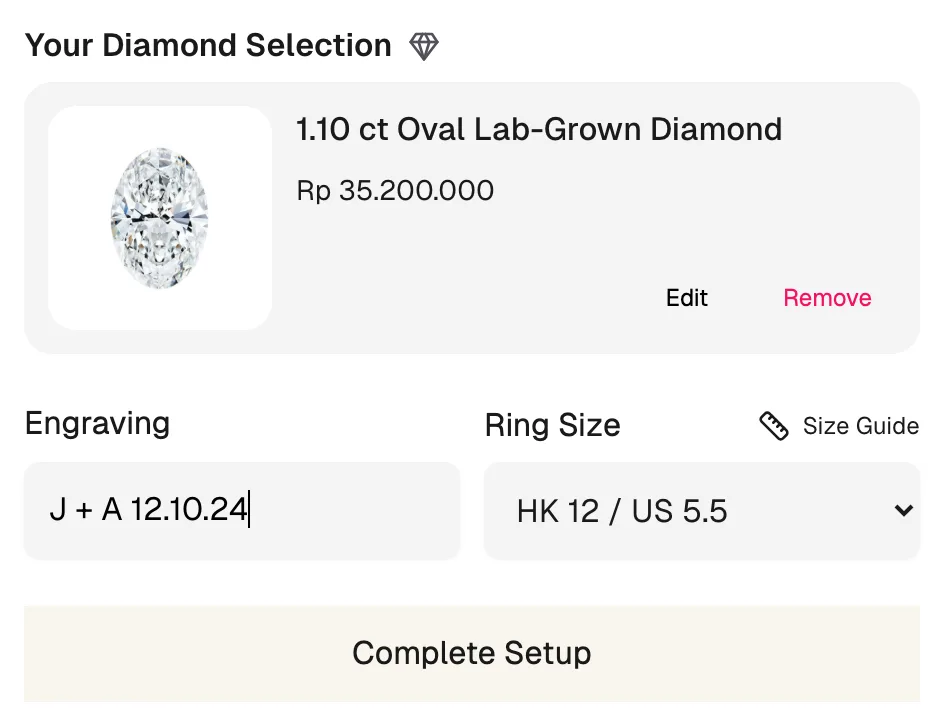
Complete Setup adds two separate items to the Shopify cart, the setting and the diamond. The engraving and the size ride along on the setting as Extra notes stored on one item in a Shopify cart, like an engraving or a ring size, that the store sees with the order., so the store sees them with the order:
return [
  {
    merchandiseId: selectedVariant.id,
    quantity: 1,
    attributes: settingAttributes, // Engraving, Size
  },
  {
    merchandiseId: stone.selectedVariant.id,
    quantity: 1,
  },
];
The cart itself is Shopify's. The site keeps only its id, in a cookie, and adding, removing and changing items are Server Actions that call Shopify's cart mutations. On the cart page, each attribute can be edited in place. Saving one sends the line's whole attribute list back to Shopify with that one value replaced.
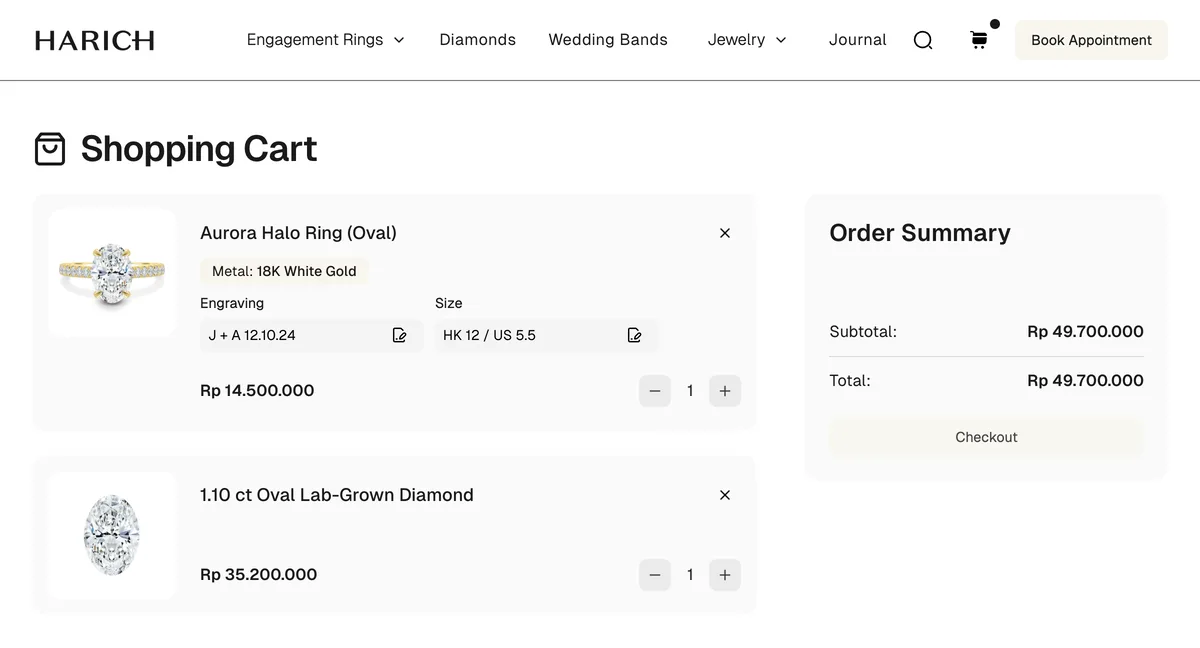
Getting that cart for these screenshots turned up a bug. On a fresh visit, the first click on Complete Setup did nothing. The second click worked. Here's the start of the action behind the button. Can you spot it?
let cartId = (await cookies()).get(COOKIES.CART)?.value;
let cart;

if (cartId) {
  cart = await getCart(cartId);
}

if (!cartId || !cart) {
  await createCartAndSetCookie();
}

if (cartId) {
  // add the lines to the cart
}
A new visitor has no cookie, so the action creates a cart and saves its id in the cookie. But the local cartId is still undefined, so the if (cartId) block is skipped. The action returns nothing, the button has nothing to report, and the cart stays empty. On the second click the cookie is there, and the lines go in. The fix is for createCartAndSetCookie to return the new id and assign it to cartId. The store's code still has the bug.
Filters that count
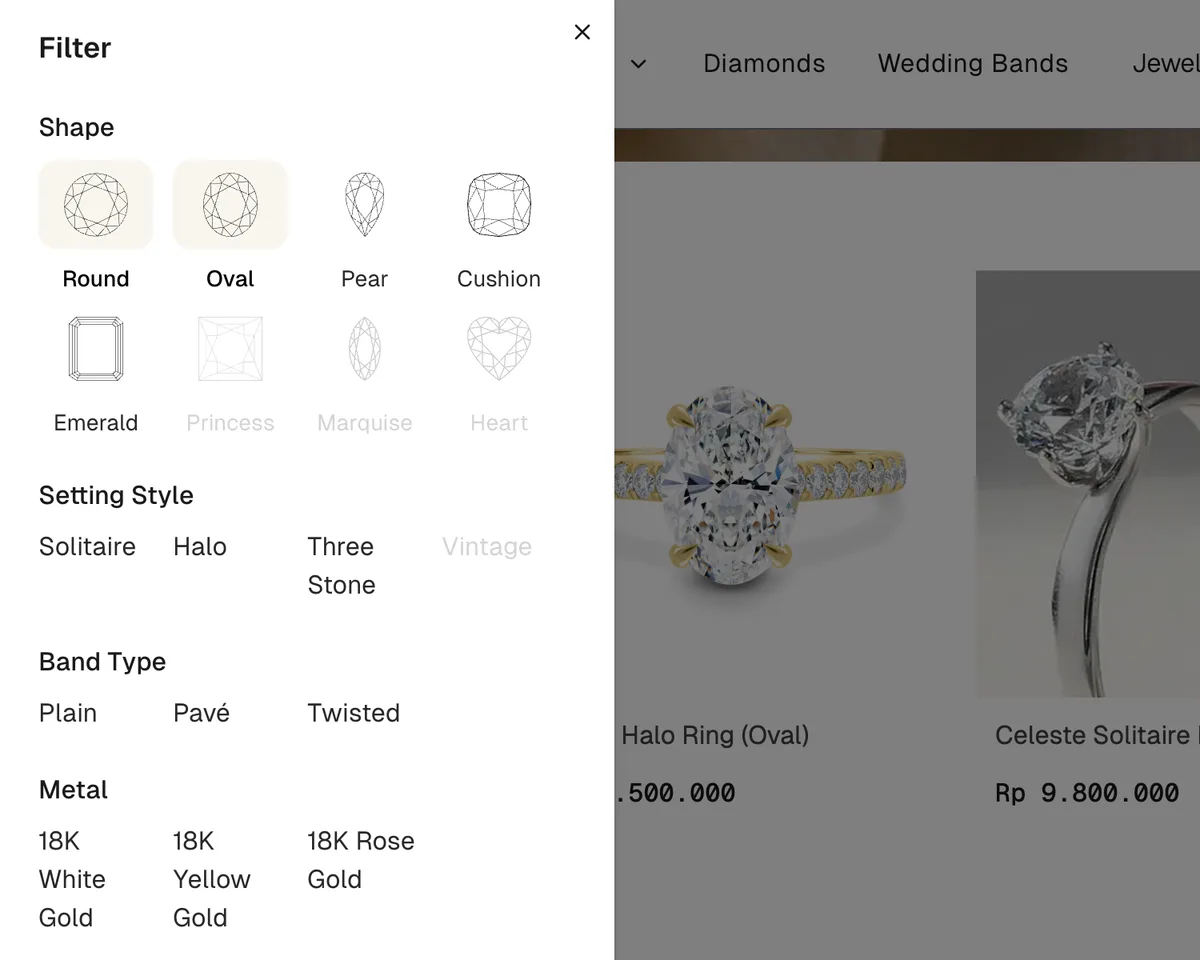
A collection page like Engagement Rings has filters for shape, setting style, band type and metal. They come from Shopify's Search & Discovery app, which sends each value with a count and a ready-made filter to send back, as a JSON string in its input field.
The URL is where the selection lives, as the filter's id and the value's label: ?filter.p.m.stone.shape=Round. That's what makes a filtered page a link you can share. It's also how the home page's Shop by Shape row works: each shape is a plain link to the collection with the filter already in the URL.
To query Shopify, the product grid turns the URL back into filters, by finding each value and parsing its input:
Array.from(searchParams.entries()).reduce((acc, [k, v]) => {
  const f = collection?.products?.filters.find(({ id }) => id === k);

  if (f) {
    const fv = f.values.find(({ label }) => label === v);
    fv && acc.push(JSON.parse(fv.input) as ProductFilter);
  }

  return acc;
}, [] as ProductFilter[]);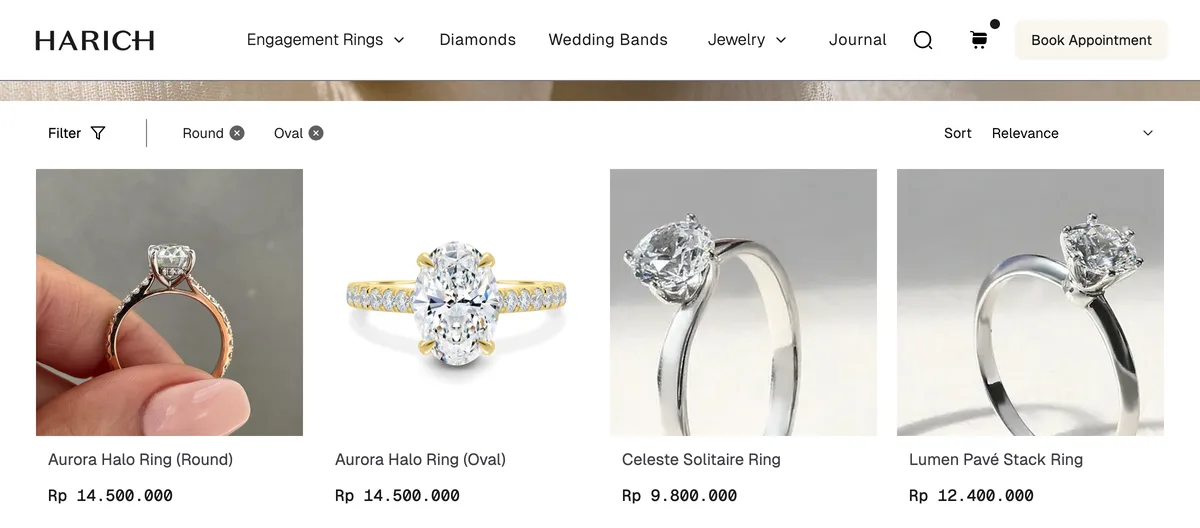
The first version of the filter panel had a problem with its counts. The server fetched the filters once, with the page, so the counts described the whole collection. After picking Round, a setting style with no round rings would still look available, and clicking it would lead to an empty grid.
Shopify already had the right numbers. The same query that returns the filtered products can return the filters too, counted against that result. So the grid asks for them, and hands them to the filter panel through a context each time they change:
useEffect(() => {
  if (collection?.products.filters) {
    setFilters(collection.products.filters);
  }
}, [collection?.products.filters, setFilters]);
A value with nothing left behind it fades out and can't be clicked.
The grid loads 24 rings at a time. When the placeholder cards below it scroll into view, an intersection observer fetches the next 24, and Apollo's relayStylePagination adds them to the list already on screen. The field arguments I pass it decide which lists count as the same one, so every sort and filter combination keeps its own:
Collection: {
  fields: {
    products: relayStylePagination(["sortKey", "filters", "reverse"]),
  },
},
The filter panel is two different pieces of UI: a panel that slides in on a laptop, and a drawer from the bottom on a phone. A component checks the screen width with a media query and imports only the one it needs, so a phone never downloads the laptop panel:
export const CollectionOrganizer = () => {
  const isDesktop = useMediaQuery("only screen and (min-width : 768px)");

  return isDesktop ? <CollectionOrganizerDesktop /> : <CollectionFilterSorterMobile />;
};
The server can't know the screen width, and the media query hook only works in the browser, like the storage hook. So the organizer is loaded with ssr: false too, and only ever renders in the browser.
The 4 C's, on sliders
A diamond's page explains the four grades jewellers use: clarity, color, carat and cut. Clarity and color each get a slider that starts on the stone's own grade, from its metafields, and you can slide it to compare.
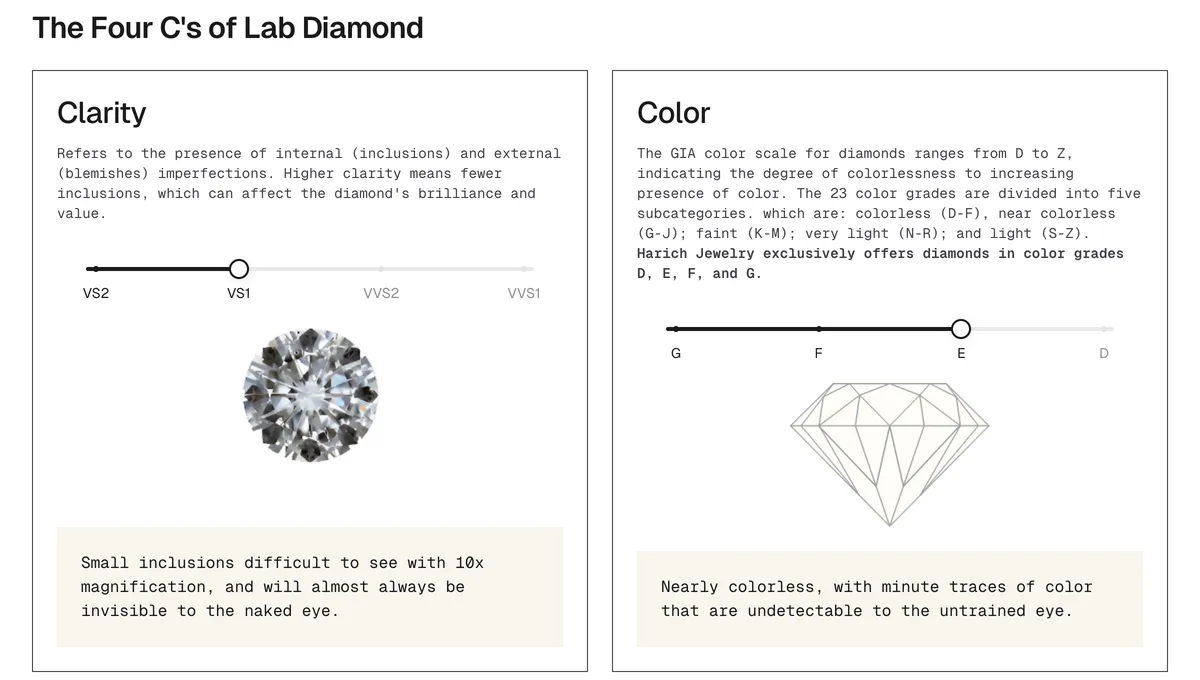
The clarity slider swaps a close-up photo for each grade. The color slider has only two pictures, a D-color diamond laid over a J-color one. The slider sets the D picture's opacity, so the stone fades from tinted to clear as you move from G to D:
<div
  className="absolute inset-0 z-10 flex justify-center"
  style={{ opacity: Array.isArray(value) ? value[0] / 3 : value / 3 }}
>
  <NextImage alt="Diamond D Color" /* … */ />
</div>
Each slider has four stops, VS2 to VVS1 for clarity and G to D for color, and the color card says the store only sells D to G.
Letting Shopify resize the photos
Shopify's CDN resizes any image on request, if you add a width to its URL. I went back and forth on how to use that:
- Next's image optimizer, switched off with
unoptimized. - The optimizer switched back on.
- Plain
<img>tags with asrcsetI built by hand from Shopify URLs. - A custom loader for
next/image, andnext/imagefor most images again. The product gallery kept its hand-builtsrcset.
The loader is the whole trick. It's three lines of code, and it hands every width next/image asks for straight to Shopify:
export default function shopifyImageLoader({ src, width }) {
  const url = new URL(src);
  url.searchParams.set("width", width);
  return url.href;
}
next/image still writes the srcset, the sizes and the lazy loading, and Shopify does the resizing.